0330 123 4609
Menu
iOS 27 is here with a host of hidden tools, smarter AI, and useful upgrades. Could it change how you use your iPhone?

Written by Sneha Kashyap, Content and PR Executive | Conscious Consumption and Tech Trends
Last updated on 23 September 2026
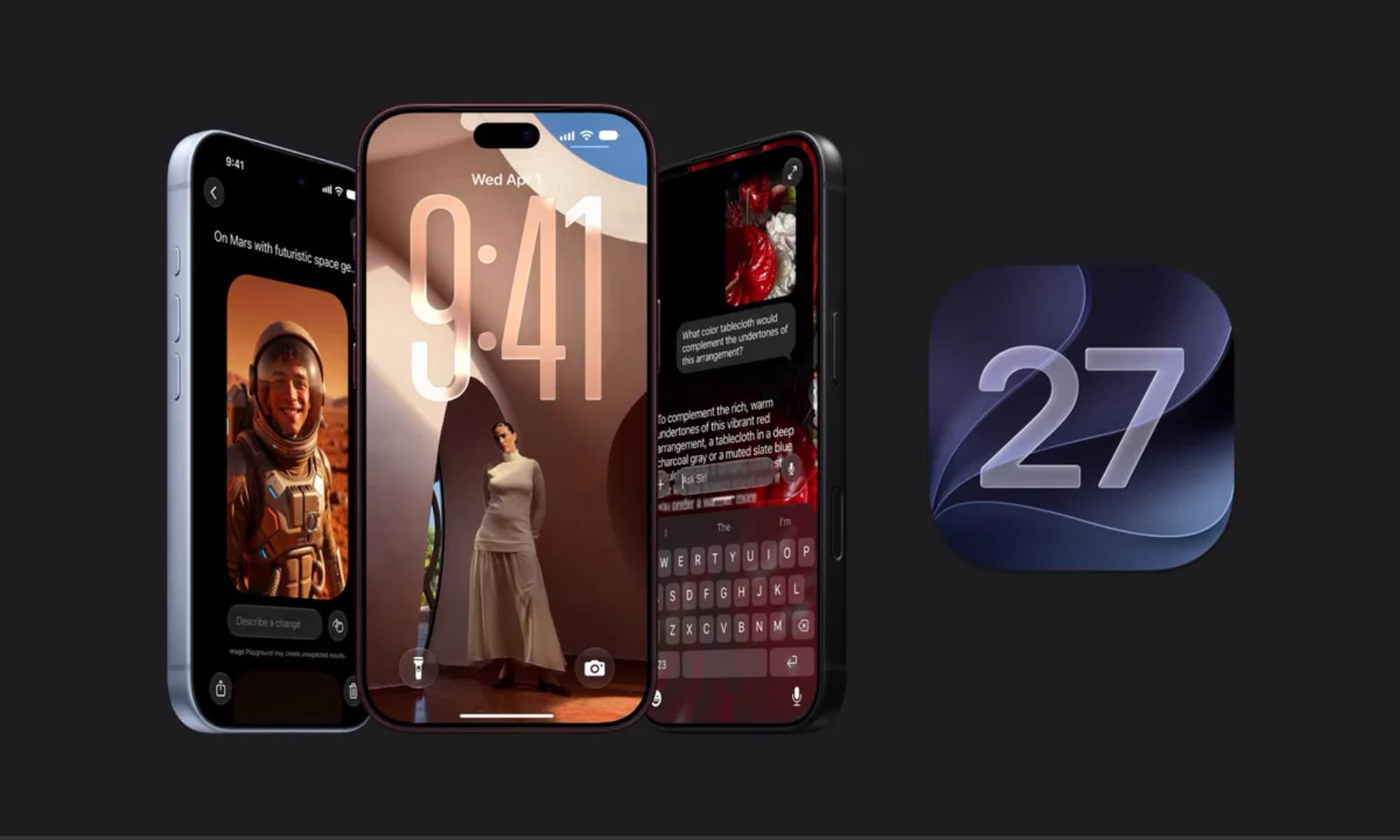
Apple’s latest iOS 27 is here with a new generation of Apple Intelligence, a more capable Siri, smarter photo editing, useful Safari automation and a collection of smaller changes that can make everyday tasks considerably easier. Some of the biggest additions are easy to spot, while others are tucked away in apps you already use every day. From asking Siri to find information buried in your iPhone to getting Safari to monitor a webpage for changes, iOS 27 is definitely putting the work in.
Here are seven iOS 27 features worth trying first and how to get started.
The biggest change in iOS 27 is undoubtedly Siri AI. Rather than functioning primarily as a voice-controlled assistant for individual commands, the new Siri is designed to understand more natural conversations, use information from across your apps and take actions on your behalf.
What makes it particularly interesting is personal context. Instead of manually searching through Photos, Mail or Notes, you can ask Siri to find something based on information already stored on your iPhone. For example, you can ask it to find a particular photo, locate information in an email or retrieve something you previously saved in a note.
Siri can also perform actions across apps, such as creating reminders, sending messages, creating events or adding music to a playlist. Apple has also introduced a dedicated Siri app where conversations can be revisited and continued across compatible Apple devices.
How to use Siri AI
Activate Siri normally or open the dedicated Siri app.
Ask a question naturally rather than relying on a rigid command.
Follow up with another question if you want to refine the response.
Try asking Siri to find something from your own apps, such as a photo, email or note.
You can also ask Siri to perform an action, such as creating a reminder or drafting a message.
NOTE: Siri AI is currently rolling out in English and is in beta. Apple says it requires an Apple Intelligence-compatible iPhone, and it is not initially available on iOS in the EU.
The Photos app gets one of the most immediately useful upgrades in iOS 27. The new Spatial Reframing tool lets you change the composition of a photo after taking it, so you can control how the subject is positioned. The Extend tool can generate additional content around the edges of an image, which can be useful when you need a different aspect ratio or want more space around a subject.
Apple has also upgraded Clean Up, allowing it to remove larger unwanted objects with improved results. There are Fast and High Quality modes, giving you a choice between quicker edits and more detailed processing.
What makes this stand out is that these aren't simply filters or colour adjustments. They can change the composition and content of an existing image without requiring a separate editing app.
How to use the new Photos tools
Open Photos and choose an image.
Tap Edit.
Look for the available AI editing options, including Clean Up, Extend and Reframe.
Choose the tool that matches the change you want to make.
Preview the result and save the edited photo if you're happy with it.
For the best results, experiment with photos where the subject is clear and there is enough surrounding detail for the AI to work with.
One of the most useful iOS 27 additions is also one of the easiest to overlook: Notify Me in Safari.
Instead of repeatedly checking a webpage yourself, Safari can monitor it for changes and notify you when something happens. Apple specifically highlights examples such as a price changing or an item coming back into stock.
Safari also gains automatic tab organisation, which can group related open tabs by topic. And with Describe an Extension, you can describe what you want a Safari extension to do using natural language rather than building one manually.
Image Credits: MacRumors
How to use Notify Me in Safari
Open Safari and visit a webpage you want to monitor.
Look for the Notify Me option on the page or in Safari's available page controls.
Enable notifications when prompted.
Safari will monitor the page and alert you when a relevant change is detected.
It's particularly useful for pages you would otherwise keep checking manually, for example, if you’re looking to sell your iPhone, Safari can monitor the product page for your model and notify you when the price increases.
iOS 27 also brings Siri and Visual Intelligence directly into the Camera experience.
Instead of taking a photo first and then trying to figure out what you're looking at, Siri mode in Camera lets you point your iPhone at something and ask questions about it or take action based on what the camera sees.
For example, it can split the bill from your receipt or tell you how much protein a spinach and feta tart has. You can now use your iPhone camera to search, ask questions and interact with information in your surroundings.
The standout element here is the combination of the camera and AI. Your iPhone isn't simply recognising an object - it can use what it sees as the starting point for a question or action.
How to use Siri mode in Camera
Open the Camera app.
Access Siri mode from the Camera interface.
Point the camera at the object, text or scene you want to investigate.
Ask a question or select an available action.
Siri and Visual Intelligence will use what's in view to help answer your request.
You can also try the feature on everyday objects rather than waiting for a specific use case. Point it at food, products, signs or other things you want to understand better.
NOTE: Siri mode in Camera has the same Apple Intelligence availability restrictions as other Siri AI features, including its current EU limitation.
This is the kind of feature you might not appreciate until the first time it saves you from digging through your inbox during an important phone call.
Call Context can surface relevant information from your apps when you're calling someone. For example, if you’re rescheduling your flights, Apple Intelligence can find your confirmation code from your booking email while you’re speaking with the airline representative.
The benefit is simple: instead of switching between apps and searching for the information the other person is asking for, your iPhone can proactively surface potentially relevant details. Call Context makes Apple Intelligence feel less like a chatbot and more like a layer built into the operating system.
How to use Call Context
Make a call to a supported business.
If relevant information is available in apps such as Mail, Messages or Wallet, iOS may surface a Call Context card.
Tap the card to open the related information in its original app.
Return to the call when you've found what you need.
The feature depends on having relevant information available and may vary according to your device, language and region.
Not every worthwhile iOS 27 feature needs to involve AI.
When iOS 26 debuted last year, Liquid Glass was the buzzword, but it wasn’t long before consumer feedback deemed it a terrible UI without any user-friendly adjustments available. Apple appears to have taken these comments to heart, having learnt that giving users no way to adjust a controversial interface was a little too transparent. With iOS 27, you can now adjust the transparency level to give your screen a more tinted look.
This is worth trying because Liquid Glass affects the visual experience across iOS. Rather than accepting one appearance, you can adjust it to suit your preference and potentially make interface elements easier to read.
Image Credits: iOS Hacker
How to adjust Liquid Glass
Open Settings.
Go to the Display & Brightness settings.
Find the Liquid Glass appearance controls.
Move the slider towards the clearer or more tinted end.
Leave it at the setting that gives you the best combination of appearance and readability.
It's a small change, but one you'll notice throughout the operating system rather than in just a single app.
iOS 27 introduces a major expansion of Apple's parental controls, giving parents and guardians more control over what children can access and when they can use their iPhone.
The changes start during setup. Parents can choose which apps a child can use, whether that means allowing only a few essential apps, selecting a recommended set or choosing individual apps. More apps can then be approved over time using Ask to Buy.
One of the most useful additions is Ask to Browse. If a child tries to visit a new website in Safari, they can send a request for permission rather than simply accessing it. Parents can review the request and approve or decline it, while previously approved websites can also be managed later.
Apple has also expanded Communication Safety. The existing protections against detected nudity now extend to detected gore and violent content in shared images and videos, with warnings designed to help children make safer choices.
The new controls aren't limited to blocking content. Parents can monitor screen time by setting Time Allowances for categories such as Games, Social Media and Entertainment, with guidance based on a child's age, and create schedules that determine which apps are available at different times of the day.
How to set up the new child safety features
Open Settings and tap Family.
Select your child's name.
Review the parental controls and available app and website restrictions.
Use Apps & Websites to manage which apps and websites your child can access.
Set up Ask to Browse if you want your child to request permission before visiting new websites.
Use Time Allowances and Schedules to control when and how long certain categories of apps can be used.
Check Communication Safety to make sure the appropriate protections are enabled.
The redesigned controls also add quick actions, making it easier to pause a child's device use, allow unlimited use temporarily or change their schedule without digging through multiple settings.
The most interesting thing about iOS 27 isn't any single feature. It's the direction Apple is taking the iPhone.
For years, major iOS updates have often felt like a collection of useful additions: a redesigned app here, a smarter setting there, and a handful of features you'll probably forget about after the first week. iOS 27 feels more connected. Siri, Photos, Safari, Camera and even FaceTime are beginning to understand more about what you're doing and, in some cases, take a few steps off your hands.
That's the real appeal of this update. The best features aren't necessarily the ones that look impressive in an Apple keynote. They're the ones that quietly remove a bit of friction from something you do every day - finding information during a call, monitoring a webpage, fixing a photo or making sense of something in front of your camera.
Not every feature will change the way you use your iPhone, and some of Apple's more ambitious AI additions still come with device, language and regional limitations. But if iOS 27 is a glimpse of where the iPhone is heading, the next generation of iOS may be less about adding things to your phone and more about making the things already on it work together intelligently.
And that's a much more interesting upgrade to live with.
Image Credits: Apple
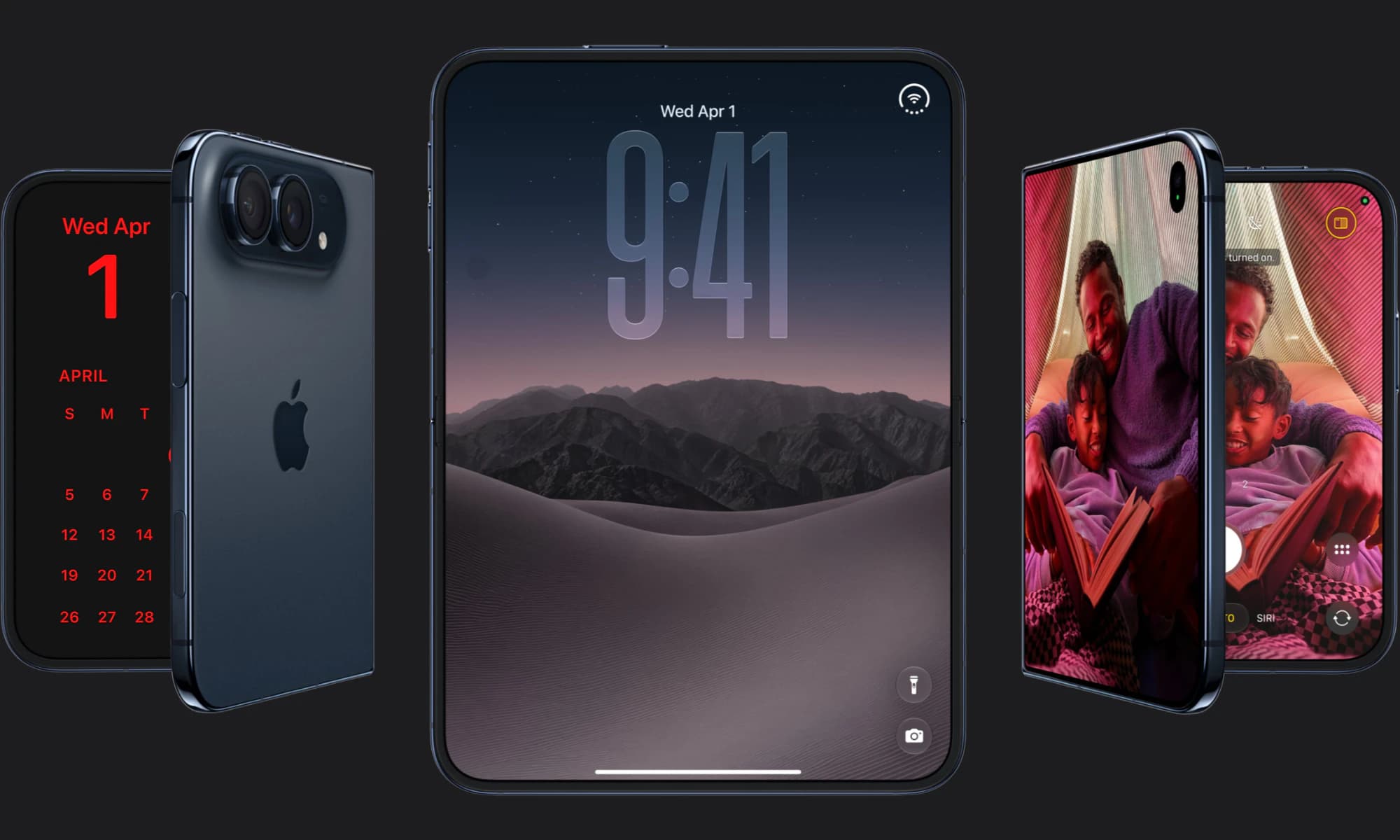
Apple has finally joined the foldable party after seven years, but was it right to wait?

iOS 27 is here! Check out key features and whether your iPhone is compatible.


Storing old phones isn’t as harmless as it seems. Here’s why it’s worth digging out your old phone to avoid a hazardous situation.