0330 123 4609
Menu
Learn how to remove your Google account from Huawei and Android phones before selling. Follow our step-by-step guide to protect your data.

Written by Sneha Kashyap, Content and PR Executive | Conscious Consumption and Tech Trends
Last updated on 28 August 2026
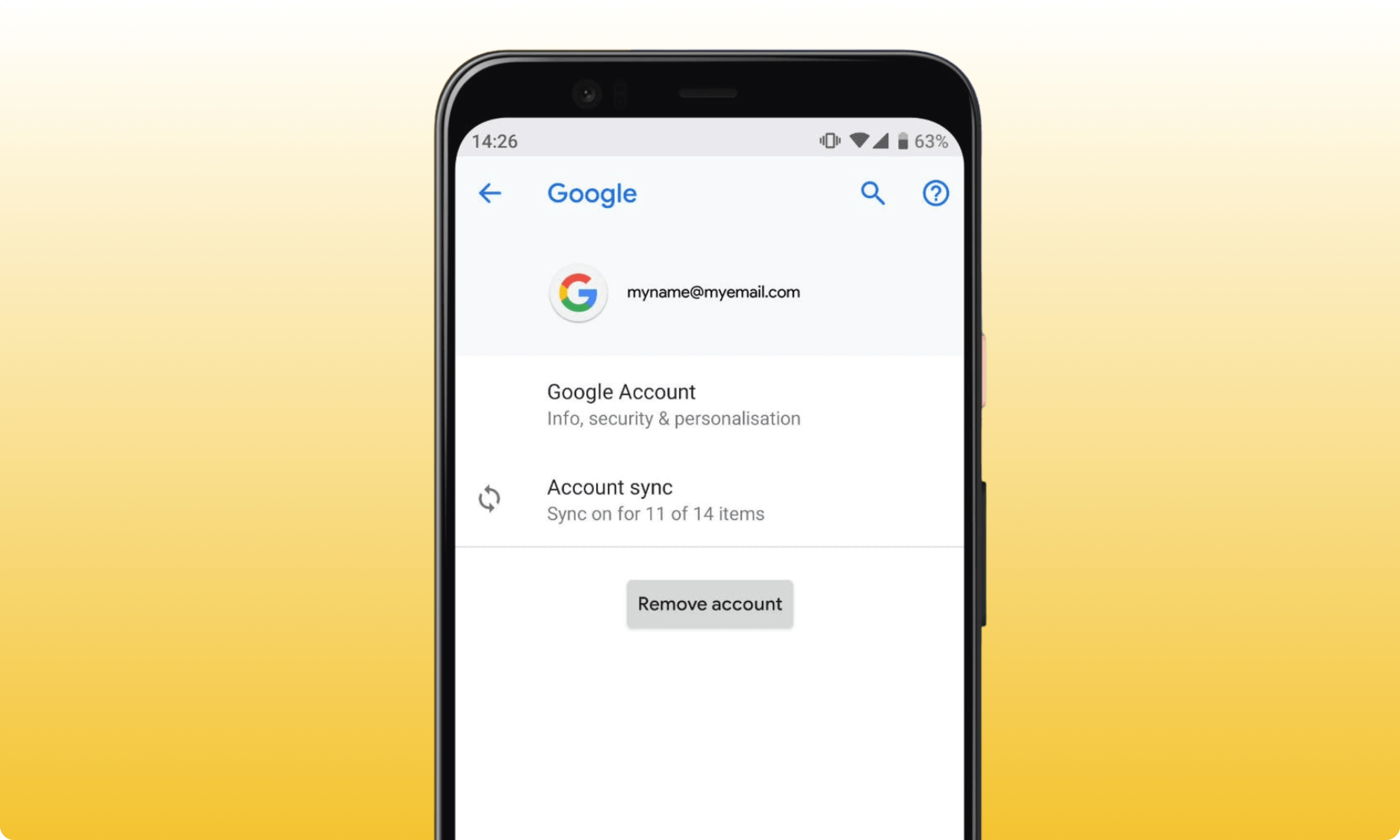
Swapping phones? Before you sell your old phone, you should remove your Google account and any other personal accounts from the device.
Removing a Google Account from your phone is different from deleting the account itself. You can still access your emails, contacts and other synced information through your account, but this data will be deleted from your old phone once you remove your Google Account on it.
If you're preparing your phone for sale, removing your Google account is an important step before performing a factory reset. It helps protect your personal information and prevents the next owner from encountering Google's device-protection checks after a reset.
Before you remove your main Google account, make sure you have everything you want to keep.
Check that your photos, contacts, calendar information and other important data have synced or been backed up. A factory reset will permanently remove the data stored on the phone, but you can still access the data stored in your Google Account once you sign in on your new phone.
You may need your Google account details when signing back into services or completing other security checks, so remember to keep your username and password handy before doing a factory reset.
You may have additional accounts on your old phone such as a Samsung account, Huawei ID, Microsoft accounts, other email accounts as well as manufacturer-specific cloud accounts. Remember to remove any accounts containing your personal information before you reset the device.
The exact wording and location of account settings varies between Android manufacturers and software versions. On most current Android phones, however, you can remove your Google account using the following :
Open Settings.
Tap Passwords & accounts.
If you can't find this option, look for Users & accounts, Passwords, passkeys & accounts, Manage accounts or a similar account-management option.
Under Accounts, select the Google Account you want to remove.
Tap Remove account.
Confirm by tapping Remove account or Delete, depending on your phone.
If this is the only Google Account on the device, you may need to enter your phone's PIN, pattern or password.
If the Google Account you want to remove is the only Google Account on your Android phone, Android may ask you to enter your device's PIN, pattern or password before allowing you to remove it.
This security check doesn't mean that your Google Account is being deleted. It simply verifies that you have permission to make the change on the device.
If you have several Google Accounts on your phone, select the specific account you want to remove and follow the same process.
Yes. Removing a Google Account does not require you to factory reset your phone.
Removing an account and resetting a phone are two separate actions.
Removing the account takes its associated information off the device, including things such as email, contacts and settings. Your Google Account itself remains available and can be used on another phone, tablet or computer.
A factory reset goes further. It removes all data from the phone and returns the device to its factory state.
If you're keeping your phone, you may only need to remove the account.
If you're selling or giving away your phone, you should remove your accounts and then factory reset the device to remove your remaining personal data.
Google Account removed?
Your phone is one step closer to being ready for its next owner. Find out how much you could get for it before you trade it in.
Samsung's Settings menu differs slightly from standard Android, but the steps are quite straightforward:
Open Settings.
Tap Accounts and backup.
Tap Manage accounts.
Select the Google Account you want to remove.
Tap Remove account.
Confirm the removal and complete any security checks shown on screen.
Samsung's menu names can vary according to the Galaxy model and software version, so if you don't see these options, search your Settings menu for Accounts or Google.
If you're selling your Samsung phone, don't forget about your Samsung Account.
To remove it:
Open Settings.
Tap your Samsung Account/profile at the top of the screen, or go to Accounts and backup.
Open the account-management options.
Select your Samsung Account.
Choose the option to sign out or remove the account.
Follow the on-screen security instructions.
NOTE: The exact process can vary between Samsung models and software versions.
If you're using a Huawei phone that supports Google services, you can remove the Google Account through the phone's account settings.
Depending on your Huawei model and EMUI version:
Open Settings.
Go to Users & accounts or the relevant account-management section.
Select Google or the Google Account you want to remove.
Tap Remove account.
Confirm the removal and enter your screen lock if prompted.
Older Huawei phones can use different menu names, so use the Settings search function if you can't find the account section.
If you're selling your Huawei phone, you should also sign out of your HUAWEI ID. Go to Settings → HUAWEI ID → Account centre → Log out
If Find Device is enabled, you'll need to enter your HUAWEI ID password when signing out. But, remember, signing out of your HUAWEI ID is not the same as removing your Google Account. Make sure you do both.
If you can’t access your phone anymore, or you've forgotten to remove your Google account before handing the device over, you may be able to sign out remotely.
Open your Google Account on another device.
Go to Security.
Find Your devices.
Select Manage all devices or the relevant device-management option.
Select the phone.
Choose Sign out.
Remote sign-out is useful if you've already given away a device or no longer have access to it. However, if you still have the phone and are preparing it for sale, removing the account directly from the handset and then performing a factory reset is the better approach.
There are two main reasons: privacy and device protection.
First, removing your Google Account ensures that account information such as email, contacts and settings is no longer associated with the handset.
Second, Google's device protection features can require the credentials of a previously synced Google Account after certain factory-reset scenarios. Removing your Google Account before handing the phone to a new owner helps ensure the device isn't left associated with your account.
FRP stands for Factory Reset Protection.
It's an Android security feature designed to help prevent someone else from using a protected phone after it has been reset without authorisation. A protected device may require the previous Google account or screen-lock credentials during setup after a factory reset.
For this reason, don't simply factory reset a phone while leaving your Google Account connected if you're handing the device to somebody else.
The safer sequence is:
Back up your data → remove your accounts → factory reset → check the phone is ready for its next owner.
Here are some commonly asked questions we get when it comes to removing a google before trading in.
If you can't find the account settings, open your phone's Settings app and use the search function. Look for terms like accounts, passwords & accounts, manage accounts, users & accounts, etc. The exact menu name can vary according to your Android version and phone manufacturer, but you should be able to find the account settings using these terms.
Removing a Google account from an Android phone does not delete the account itself. Instead, the data associated with that account, such as emails, contacts and settings, will be removed from the device. Your Google account still exists, so you can sign in again on another device.
Not necessarily. If your photos and other information have already been backed up or synced to your Google Account, removing the account from the phone doesn't delete that Google Account or its cloud-stored information.
However, you shouldn't rely on account syncing alone before selling your phone. Check that anything important has been backed up before removing the account or resetting the device.
If your information was synced or backed up to your Google Account, you can generally access that information again by signing into the account on another device.
Removing an account from your phone does not delete the Google Account. However, information that existed only locally on the phone may not be recoverable simply by adding the Google Account again. That's why it's important to back up your data before removing your account or performing a factory reset.
If you're planning to sell your phone, don't reset it until you've checked that you have everything you need.
Removing your Google Account is an important part of preparing your phone for resale or recycling, but it's only one step. You need to back up your data, remove your accounts, factory reset your phone and then compare recycling prices. If you're ready to sell, use Compare and Recycle to compare offers and find out how much your phone could be worth.
Get a price for your phone
iOS 27 is here with a host of hidden tools, smarter AI, and useful upgrades. Could it change how you use your iPhone?
Apple has finally joined the foldable party after seven years, but was it right to wait?

iOS 27 is here! Check out key features and whether your iPhone is compatible.