0330 123 4609
Menu
Factory resetting your smartwatch before selling is a must. Learn how to do it to protect your personal data and avoid cloud account lock issues.

Written by Sneha Kashyap, Content and PR Executive | Conscious Consumption and Tech Trends
Last updated on 25 February 2026
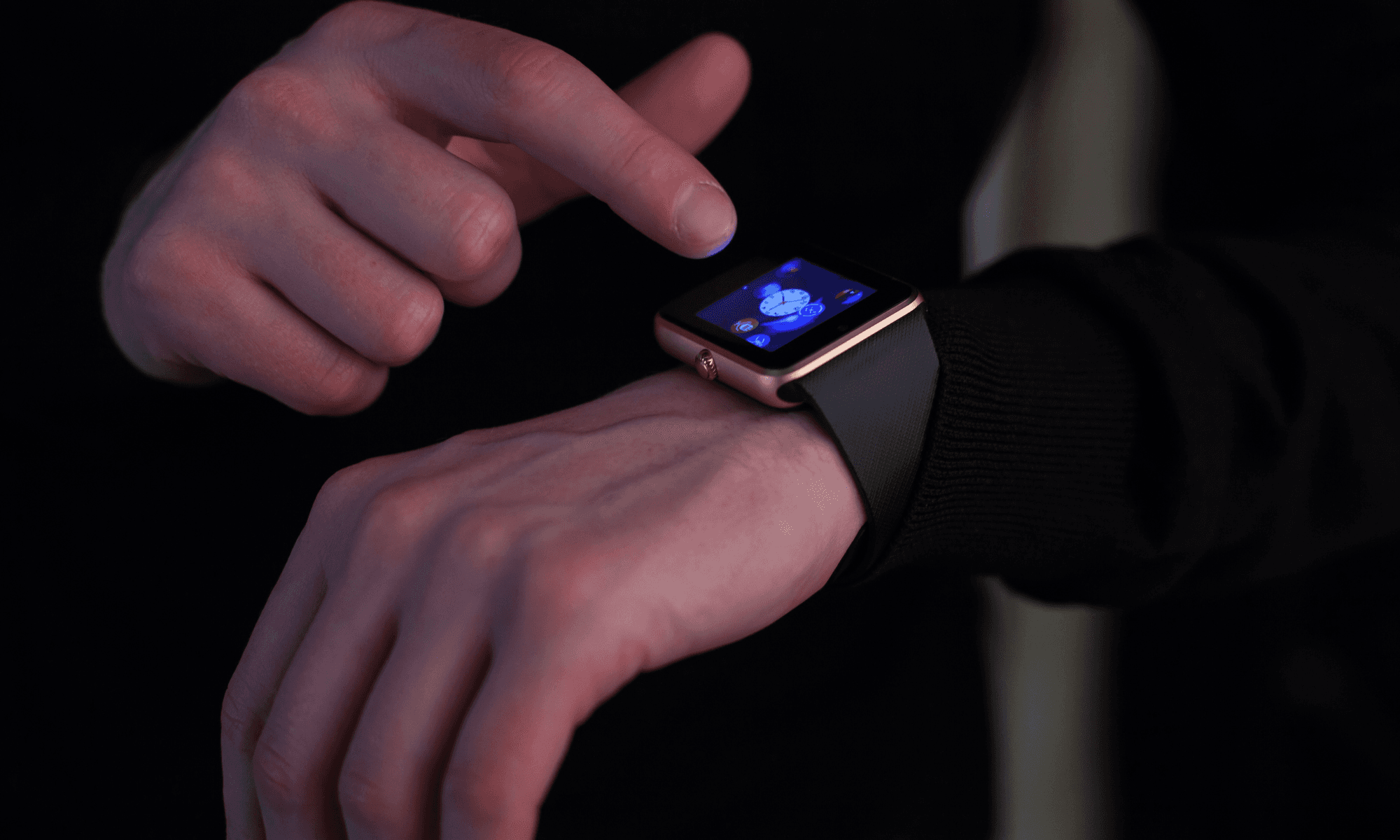
With Samsung’s Galaxy Unpacked due to happen any day now, a lot of us are wondering whether the smartphone giant will come up with a new smartwatch. And if that does happen and you fancy an upgrade, you’ll need to reset your old watch before trading it in. Letting it gather dust isn’t ideal; even worse is selling it without wiping it properly as it can leave your personal data, cloud accounts, and payment details exposed.
Whether you’re using an Apple Watch, a Samsung Galaxy, or a Google Pixel one, in this guide, we’ll walk you through all the steps you need to factory reset your smartwatch and prepare it for its next owner.
How you reset your Apple Watch depends on whether you still have it or you’ve already given it away.
Keep your iPhone and Apple Watch close to each other.
Go to the Apple Watch app on your iPhone.
Tap on the My Watch tab → All Watches.
Click on the (i) icon next to your watch.
Tap Unpair Apple Watch.
If prompted, tap Remove Cellular Plan (for cellular models).
Enter your Apple ID password to disable Activation Lock.
Confirm and wait for the unpairing/reset process to finish.
Your iPhone will automatically back up your Apple Watch in the process.
Go to iCloud.com and log in.
Select Find iPhone → All Devices → choose your Apple Watch.
Click Erase Apple Watch → click Next until done.
Then click the X next to the watch to remove it from your account. This ensures Activation Lock is fully disabled, allowing a new user to set it up.
Once you wipe your Apple Watch, it will erase all your data such as photos, music, apps, and any cards you added to your Apple Pay. It will also turn off iCloud, iMessage, FaceTime, Game Center, and other services. However, your data won't be deleted from iCloud when you clear your device.
You can reset a Galaxy smartwatch directly from the watch, through the Galaxy Wearable app, or using recovery mode if you're locked out of the device. Before you wipe your device, make sure to back up your data and unpair the Bluetooth connection between the watch and your phone.
On your watch, go to Settings → General → Reset.
Tap the checkmark to confirm reset.
Follow on-screen prompts to complete.
For models like the Galaxy Fit2, swipe down from the Quick Settings panel, go to More options, and tap Reset.
Open the Galaxy Wearable app.
Tap Watch settings → General → Reset.
Tap Reset again to confirm.
If you have a Galaxy Fit or Fit 2, go to About Band on the Galaxy Wearable app, click on Reset Band, and tap Reset again to confirm.
Credits: Samsung
Hold both Home (Power) and Back keys until the watch reboots.
Quickly press the Home key until Reboot mode appears.
Use the Home key to scroll to Recovery, then press to select.
For Wear OS models, swipe down to choose Wipe data/factory reset, then swipe to confirm.
After the reset, you'll need to log in with the same Samsung account you used previously.
Pixel Watches use Wear OS and include eSIM and Google account integration. Here’s how to properly reset yours before giving it away.
Place your watch on its charger and ensure Wi-Fi is connected.
On your phone, open the Google Pixel Watch app.
Tap Google → Backup → turn on backup.
Make sure you plan ahead as the backup can take a few days to complete.
On your Pixel Watch, swipe down and tap Settings.
Tap System → Disconnect & reset.
Tap Erase eSIM, then Confirm.
The watch will reset to factory settings.
After resetting, the Pixel Watch will no longer be linked to your Google account and can be set up from scratch by the next owner.
Credits: Google
Whether you're upgrading to the latest Galaxy watch - if there is one - or simply decluttering your tech drawer, factory resetting your smartwatch is a must. It protects your personal data, prevents activation or account lock issues, and ensures the next user can set it up without a hitch.
Ready to sell your smartwatch?
Check out our trade-in prices for Apple Watch, Samsung Galaxy Watch, and Google Pixel Watch models and get instant value for your device. Compare offers, recycle responsibly, and turn your old smartwatch into cash in minutes.
Apple has finally joined the foldable party after seven years, but was it right to wait?
iOS 27 is here! Check out key features and whether your iPhone is compatible.

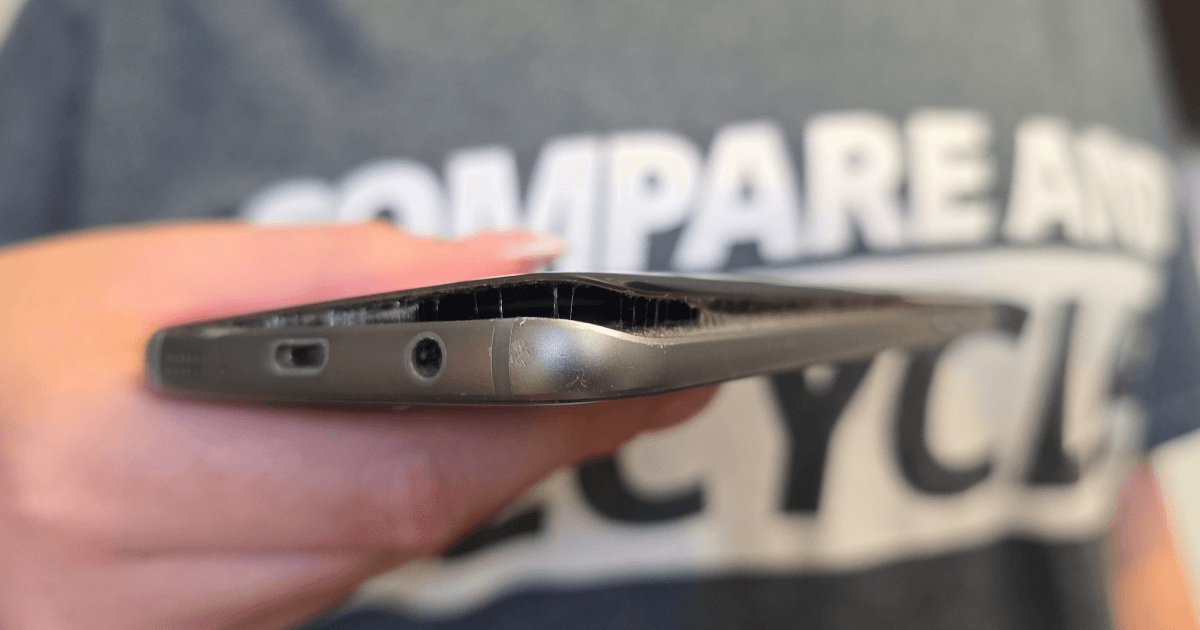
Storing old phones isn’t as harmless as it seems. Here’s why it’s worth digging out your old phone to avoid a hazardous situation.