 0330 123 4609

Menu
Before posting your device there are a few steps you need to take, some we consider absolutely essential and we have a few recommendations too!


If you’re selling your device as ‘ New ’, it is essential you DO NOT open the original box or remove the device from its retail packaging as it will no longer be classed as ‘ New ’. Please skip to “Pack It Up” step and refer to the "Posting Your Device" section for how to send it off.
If you want to keep your pictures and files, you need to back up your data.
On Apple devices, go to Settings > click on your Apple ID > iCloud > iCloud Backup > Back Up Now
For Androids, navigate to Settings > Accounts and Backup > Back Up Data
Remove your cloud account (i.e. iCloud, Samsung Cloud or Google Account). A recycler won’t be able to buy your device if it is locked to your cloud account.
If you need help, here’s our guide to remove iCloud.
For cloud accounts on Android use our Android account removal guide.
Carry out a factory reset to put your device back to its default settings. This will make sure your data is wiped from the device.
On Apple devices, navigate to Settings > General >Transfer or Reset iPhone > Erase All Content and Settings
On Android, go to Settings > General Management > Reset > Factory Data Reset
Carefully remove any aftermarket screen protectors, car mounts, cases, SIM card, SD cards and give your device a thorough clean using a microfiber cloth and gentle cleaning solution.
Take good quality pictures of your phone with the screen turned on from all angles (front, back, sides, top and bottom). This will ensure you’ve got proof of the condition of your phone prior to sending it.
The IMEI is a unique set of 15 digits used to identify your device. We recommend noting it down just in case you need it. You can find it on the retail box your device came in or in settings on your device.
On Apple devices, go to Settings > General > About.
On Android, go to Settings > About.
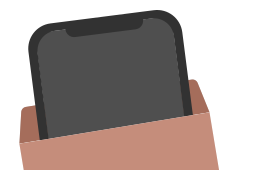
You’ve received a fold-up carboard box, place your device inside and seal it. If you’re selling your device as ‘New’, DO NOT unbox it from its original packaging. Keep the retail box sealed, and place it inside the pack provided.
Next, put the packaged device in the cellophane bag provided which has a freepost postage label attached to it.
Depending on what suits you best there are two ways to post your device.

There's a pre-paid Royal Mail Tracked 24® label included in our freepost pack. Simply take your packaged device to your local Post Office and hand it over to a member of staff who will provide you with proof of postage. If you'd rather have your device collected you can arrange for your device to be picked up through send.royalmail.com.
For higher value devices we recommend paying for Royal Mail's Special Delivery service to cover your device for its full value. You can purchase a Special Delivery label directly from a Post Office or online and book a collection at send.royalmail.com.
Make sure you keep hold of your tracking number and proof of postage.
